

How to add a discount amount to a product on shopify
Learn how to apply a discount amount to a product in Shopify and offer promotions seamlessly.
•
February 23, 2026
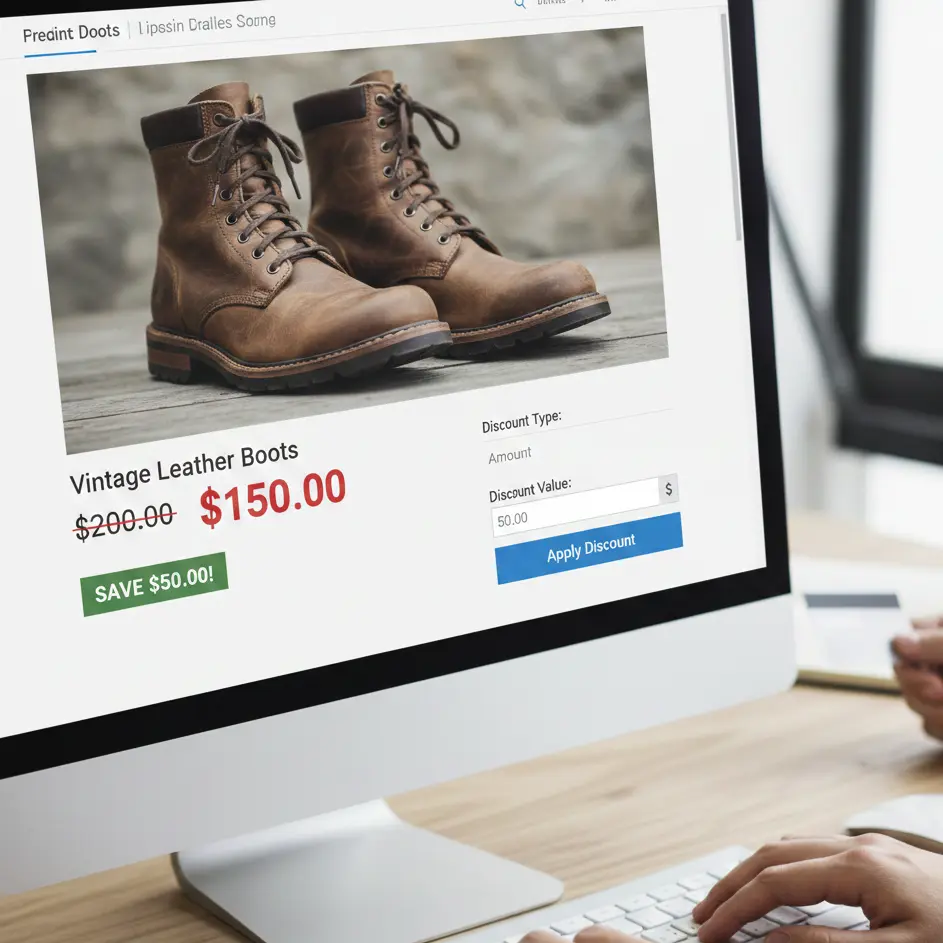
Many Shopify store owners want to offer discounts on specific products to attract customers or boost sales. Applying a discount amount to a product is an effective way to run promotions.
With our app, you have multiple options to apply discounts, which can sometimes be confusing. In this blog, we’ll guide you through the easiest ways to add a discount amount to a product.
Our app allows you to create product specific discounts using either percentage based discounts or fixed amount discounts. Here’s a step-by-step guide to set them up.
1. Install the BeSure Checkout Rules app
Go to the Shopify App Store and install the BeSure Checkout Rules app if you haven’t already. This app lets you create custom rules for your Shopify checkout process.
2. Create a New Rule for Product Discounts
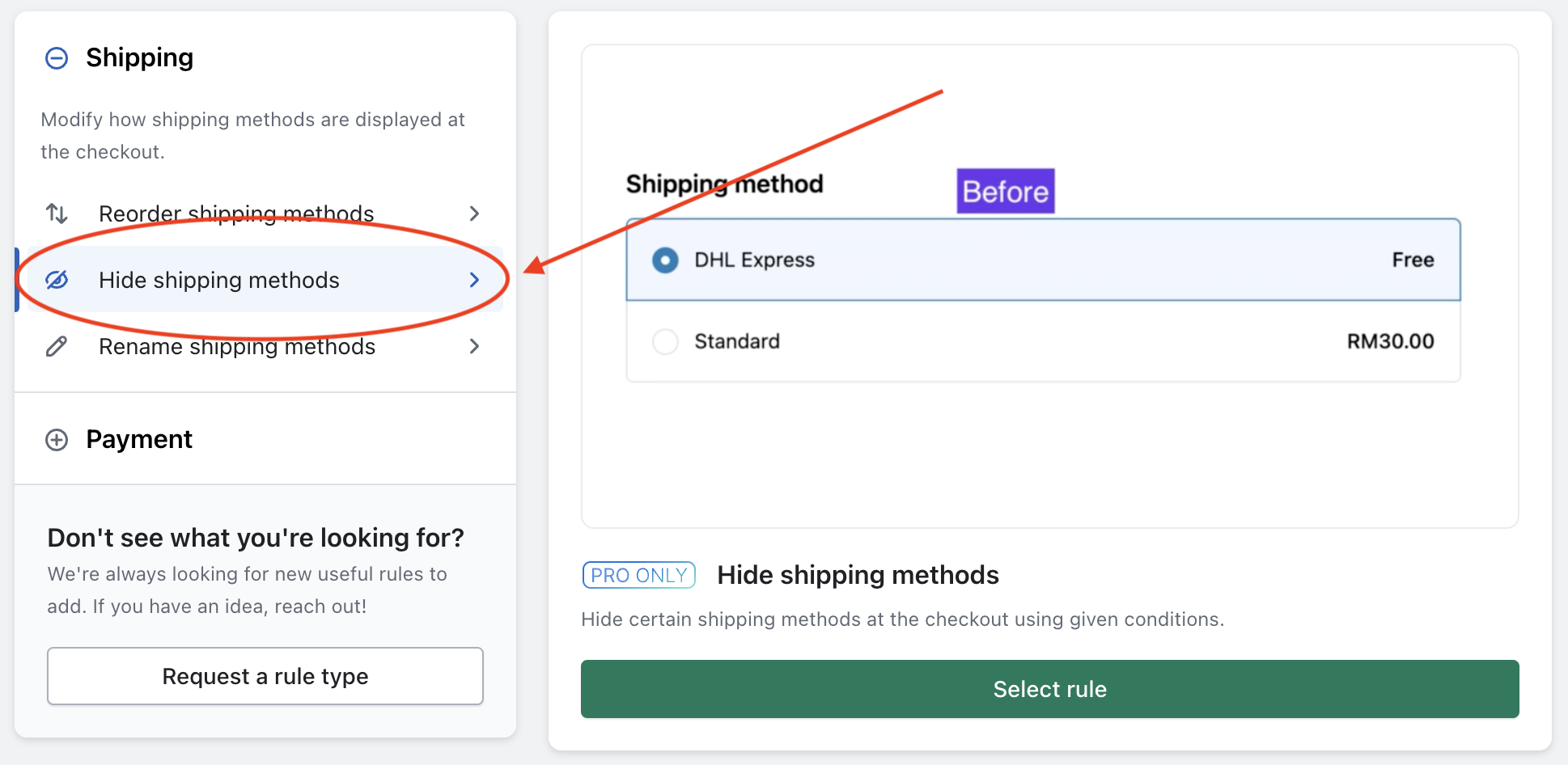
Once installed, navigate to the app dashboard and click Create rule. From the list of rule types, select Discount product amount, then click Select rule to proceed.
3. Define rule conditions and actions
In the “Conditions” section (When...), specify when the discount should apply.
For example, see below where “Order total amount ≥ 300” is selected. This means that if the order total amount is greater than 300, the rule will be triggered.

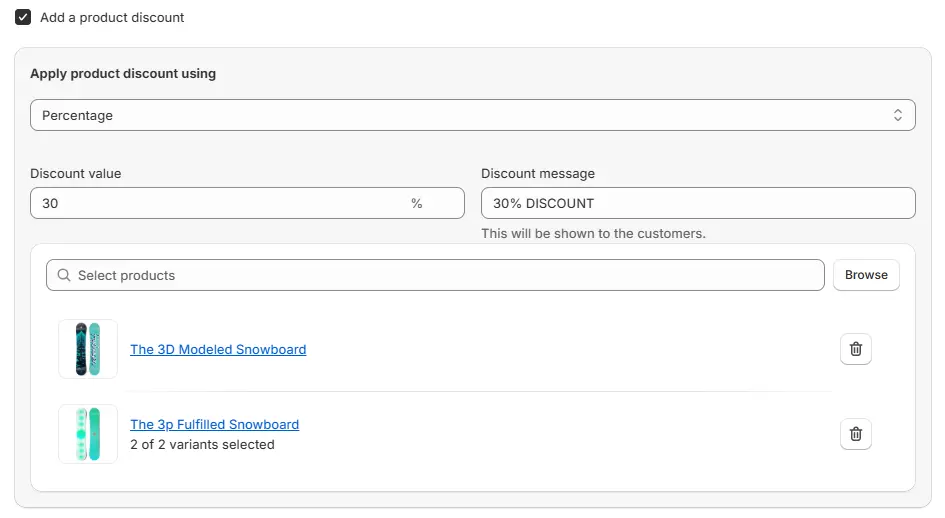
In the “Actions” section, select the action you want to apply when the above condition is fulfilled.
For example, see below where “Percentage” is selected. You can also choose other options based on your requirements. Next, enter a percentage amount (e.g., 30). Then, provide a Discount Message (e.g., “30% DISCOUNT”). Finally, select the products you want the discount applied to. In this case, we apply the discount to “The 3D Modeled Snowboard” and “The 3P Fulfilled Snowboard”.
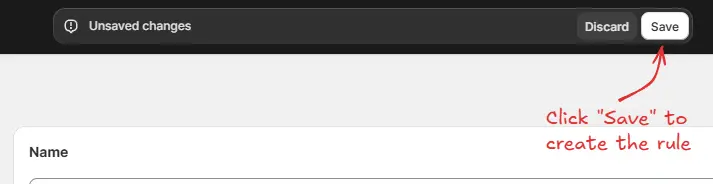
4. Save the rule
Click Save at the top of the app to create and activate the rule.
5. Test the discount rule
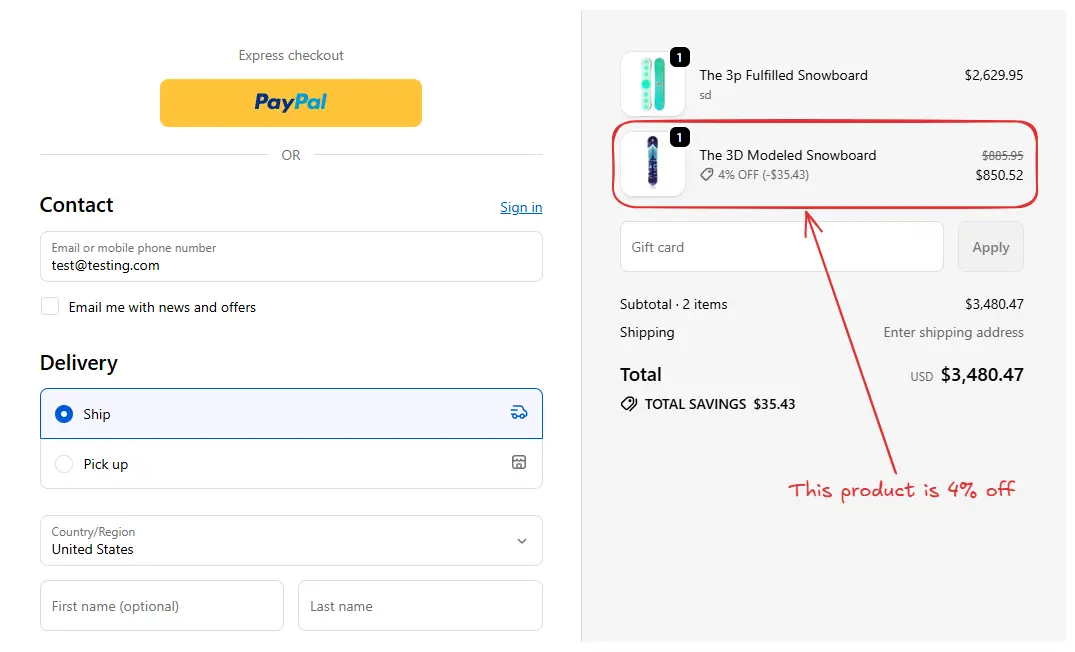
Go to your storefront, add products to the cart, and proceed to checkout. Verify that the shipping discount applies when the conditions are met.
Example use case
Suppose you want to offer a 4% discount on the product “The 3D Modeled Snowboard” for orders with a subtotal of $100 or more.
Here’s how:
- Create a Discount product amount rule under the Discount section.
- Set the condition to Order subtotal ≥ $100 (as explained in Step 3 above).

- In the “Actions” section, select Percentage, set it to 4 for the product “The 3D Modeled Snowboard”, and add the message “4% OFF”.
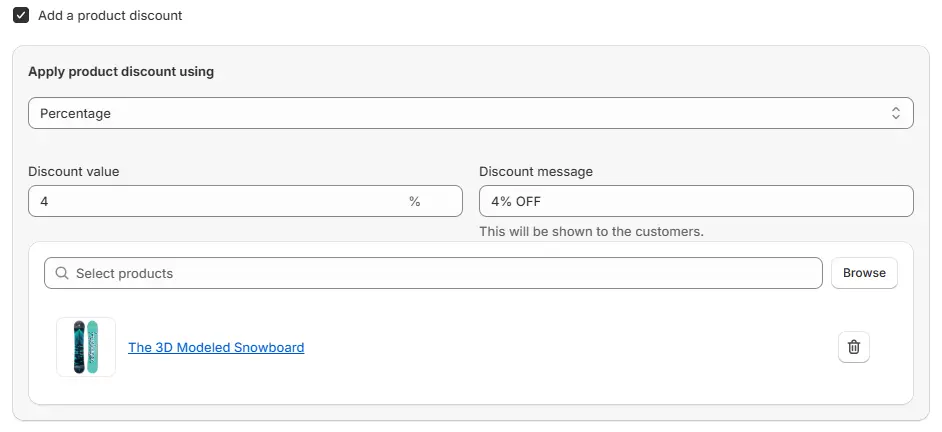
This setup will apply a 4% discount on the product “The 3D Modeled Snowboard” when the order subtotal is ≥ $100.
Conclusion
Adding a discount amount to a product in Shopify is straightforward with our app using the Discounts feature. By setting fixed amount discounts, you can:
- Attract customers with precise promotions.
- Boost sales of specific products.
- Ensure a seamless shopping experience with clear pricing.
Using the right discount setup ensures your customers enjoy savings while you maintain control over your promotions.
Related Articles

How to apply a discount to the order total at checkout
Apply discounts directly to the order total at checkout based on specific rules and conditions.
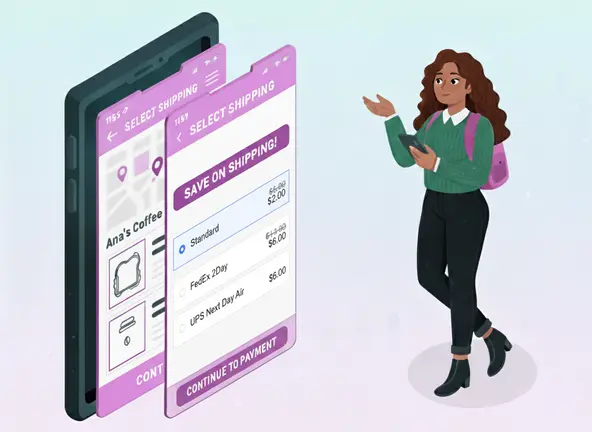
How to apply discounts to shipping methods at checkout
Apply discounts to shipping rates at checkout based on predefined conditions.

How to easily block PO Boxes in Shopify checkout
Learn how to easily manage PO Box shipping in your Shopify store for a seamless checkout experience.